Transform data chaos into visual clarity
A Histogram transforms confusing data into visual patterns you can actually understand. This video demonstrates the 4-step histogram creation process: collect data, choose bin sizes using mathematical rules (2^k, square root, Rice's formula), plot frequency distributions, and interpret results to spot patterns, outliers, and anomalies instantly—no spreadsheet analysis required.
You'll learn: What histograms reveal about data distribution • The 4-step creation process • Bin selection rules and formulas • How to spot patterns and outliers visually
Video Transcript
What Is a Histogram?
A histogram is a graphical representation that showcases the frequency distribution of a dataset by displaying data values within specified class intervals or “bins.”
It consists of a series of bars, each representing a data range or bin. The height of each bar corresponds to the frequency or count of data points falling within that range.
Why Use a Histogram?
The primary goal of using histograms in quality management is to provide a clear and intuitive representation of data distribution, enabling analysts to spot trends, outliers, and potential issues within the dataset. This helps in data-driven decision-making and process improvement.
When to Use a Histogram
Use a Histogram when you need to visualize how data is distributed across a range of values. Histograms answer the critical question: “What does my data look like, where is it centered, and how much does it vary?”
Typical triggers are:
Root Cause Analysis (8D Step D4)
When investigating quality problems, histograms reveal patterns invisible in raw data. “Do failures cluster in a specific range? Are there two populations (bimodal)?” A bimodal histogram screams “two different causes!” Data patterns lead to root causes.
A3 Problem Solving
The A3 problem-solving method dedicates a section to root cause analysis. 5-Why Analysis fits perfectly here – it’s visual, fits on one page, and creates a clear logic chain from problem to root cause that stakeholders can follow.
Before/After Comparison
When implementing improvements, histograms prove effectiveness. “Did the change reduce variation? Did it shift the mean toward target?” Overlay before/after histograms for visual proof. Management sees the improvement; data proves it.
A3 / PDCA Problem Solving (Check Phase)
In A3 and PDCA cycles, the “Check” phase requires data analysis. Histograms compare before vs. after distributions. “Did our countermeasure reduce variation? Did the mean shift toward target?” The A3’s limited space shows the histogram; the conclusion is visual and undeniable. Data-driven improvement verification.
FMEA Occurrence Rating Validation
FMEA estimates Occurrence based on assumptions – histograms validate them. “We rated Occurrence as 4, but what does actual data show?” Historical data plotted as histogram confirms or corrects FMEA assumptions. Data-driven risk assessment.
Incoming Inspection / Receiving Quality
When materials arrive from suppliers, histograms reveal quality patterns. “Is this batch centered on target? Is variation acceptable?” One histogram per batch tells you more than 100 individual measurements. Supplier quality visible at a glance.
SPC Setup / Control Chart Initialization
Before setting up control charts, understand your baseline distribution. Histograms show if data is normal, skewed, or bimodal – critical for choosing the right control chart type. “Is my data normally distributed?” Wrong assumption = wrong control limits.
Process Capability Analysis (Cp/Cpk)
When evaluating if your process can consistently meet specifications, histograms visualize the relationship between your data distribution and specification limits. “Is my process centered? Does it fit within the spec limits?” A histogram instantly shows if you’re capable or in trouble. Process capability starts with understanding your distribution.
Measurement System Analysis (MSA)
When validating measurement systems, histograms reveal measurement variation patterns. “Is measurement error normally distributed? Are there systematic biases?” A skewed histogram suggests measurement problems, not process problems.
Lot Release / Batch Acceptance
Before releasing production lots, histograms summarize quality. “Does this batch meet requirements? Are there any outliers?” One histogram per lot in the batch record provides complete quality evidence. Release with confidence.
Customer Complaint Analysis
When analyzing complaint patterns, histograms reveal concentrations. “Are complaints clustered around specific values or times?” A histogram of complaint data by parameter shows where to focus. Complaint patterns guide corrective action.
Design of Experiments (DOE) Output Analysis
DOE generates data – histograms visualize results. “How did the response variable distribute across treatments?” Before calculating statistics, see the data. Histograms reveal outliers, non-normality, and unexpected patterns.
Pharmaceutical GMP Requirements
GMP requires understanding process variability. “What is the distribution of tablet weights, dissolution times, API content?” Regulatory submissions include histograms as evidence of process understanding. Compliance demands data visualization.
Automotive IATF 16949 Audits
IATF 16949 requires evidence of statistical thinking. “Show me your process capability analysis.” Histograms with Cp/Cpk demonstrate process control to auditors. Visual + statistical = audit-ready evidence.
Equipment Qualification (IQ/OQ/PQ)
When qualifying equipment, histograms document performance. “Does the equipment produce consistent output?” Multiple histograms across qualification runs prove equipment capability. Qualification evidence in visual form.
How to Create a Histogram
1. Collect data
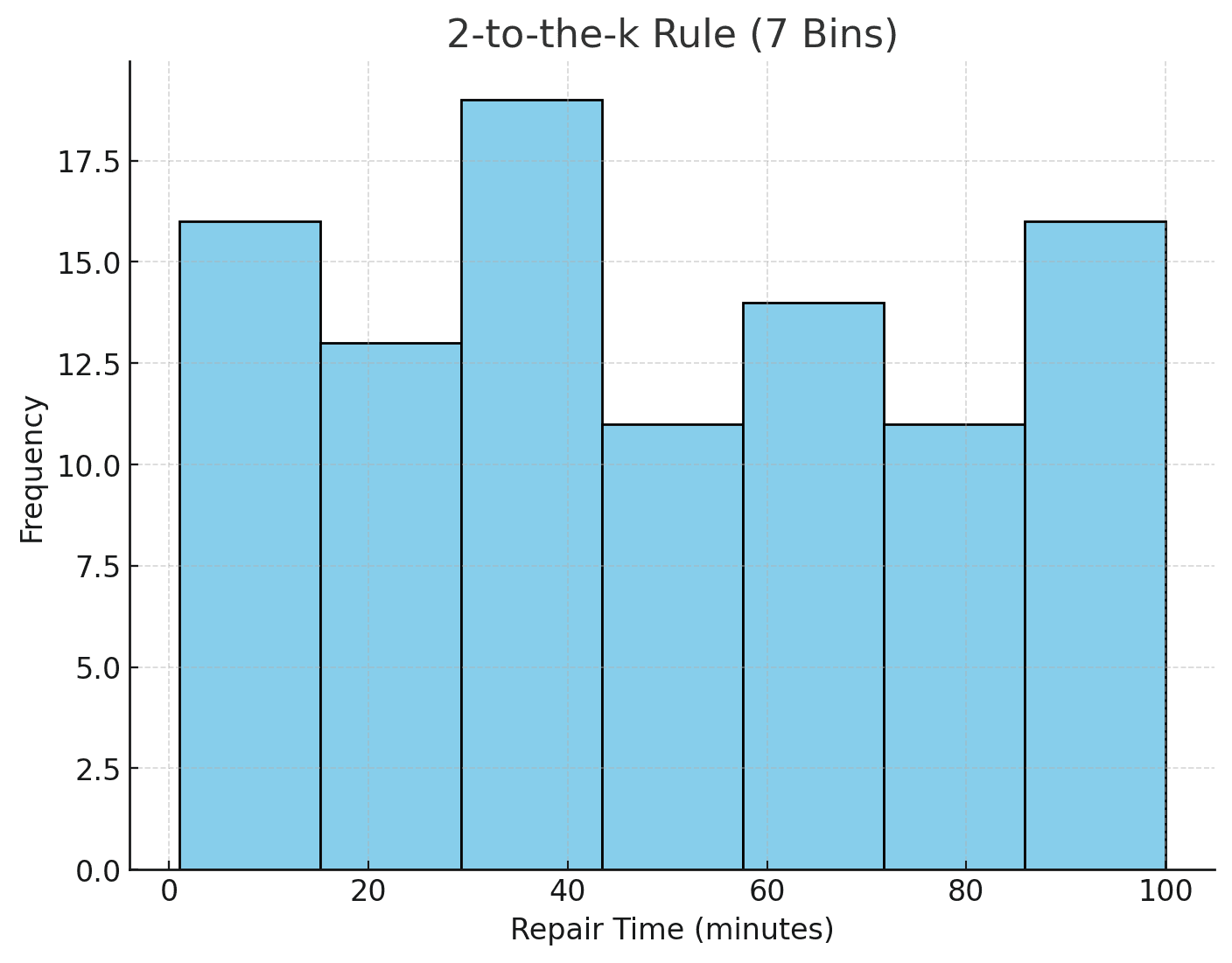
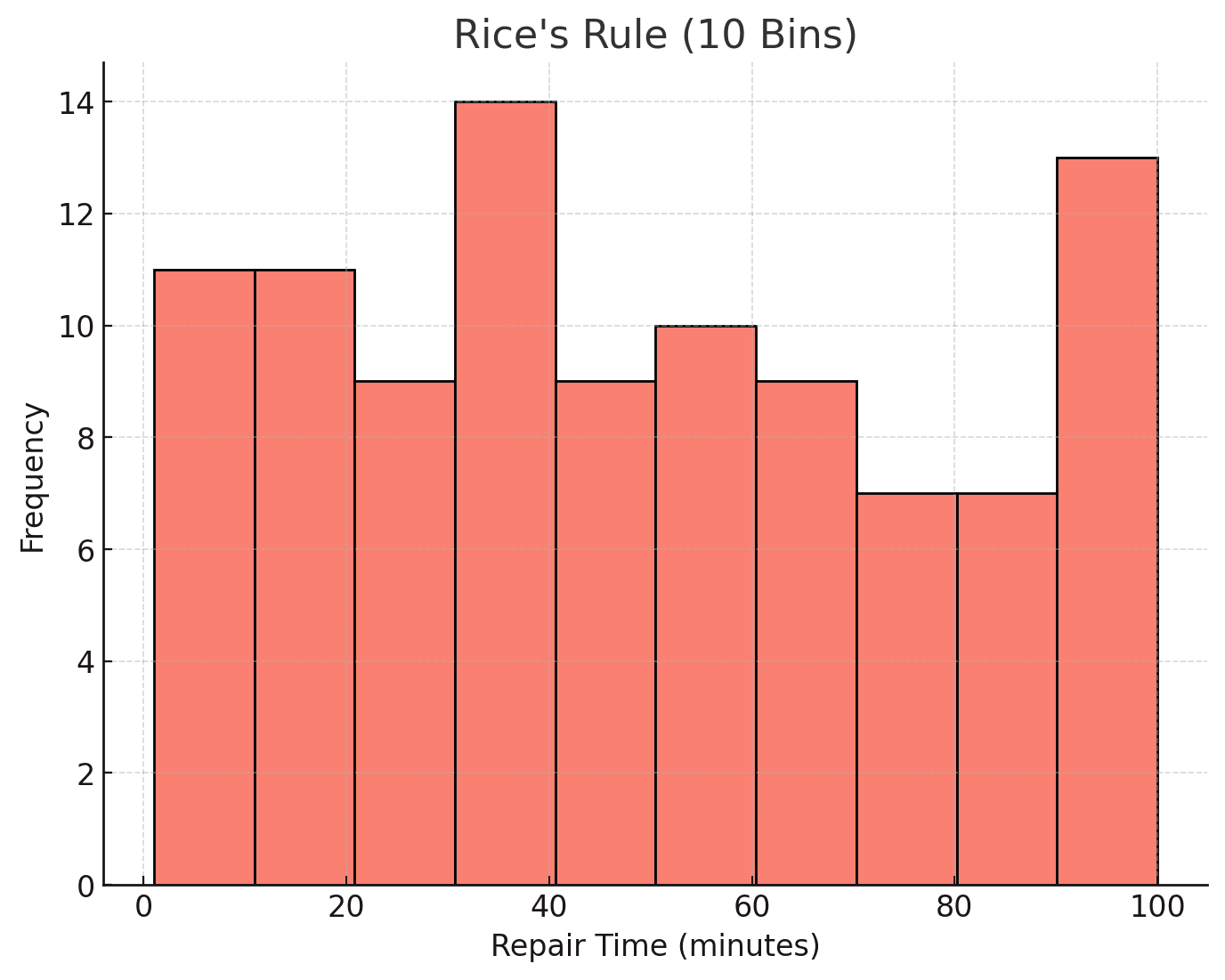
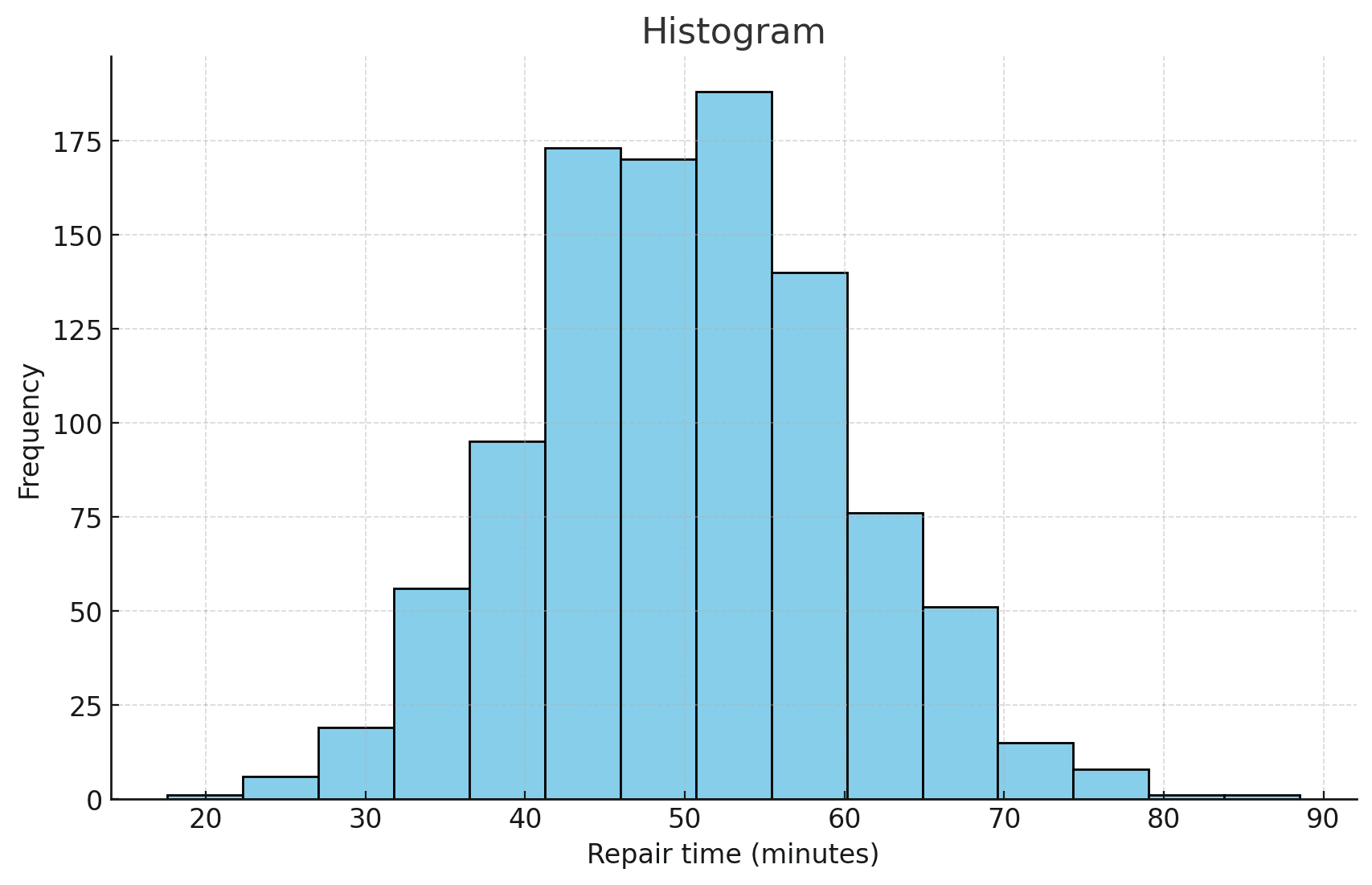
Technicians record 100 repair times throughout the day, measured in minutes.
Example data (out of 100 times):
81,69,17,82,21,36,95,55,58,2,74,89,65,49,94,20,85,11,54….
2. Choose class intervals / bins
Next, decide the class intervals (or bins) for your data grouping. The amount and size of these bins will greatly affect how clear the histogram is. Common ways to figure out the number of bins include:
Based on the repair time data (100 data points), the recommended number of bins for the histogram according to each rule are:
2-to-the-k Rule:
7 bins
Square Root Rule:
10 bins
Rice’s Rule:
10 bins
2-to-the-k Rule:
Find k so that 2k≈n2^k \approx n2k≈n, where n is the total number of data points.
Square Root Rule:
Set k as the square root of n.
Rice’s Rule:
Calculate k=2×n1/3k = 2 \times n^{1/3}k=2×n1/3.
3. Plot the diagram
With data in intervals, plot each point in the bins and create bars for their frequencies.
The height of each bar shows the number of data points in that interval, making comparison across ranges easy. Keep bar widths consistent to show the distribution accurately and label the axes clearly (like “Data Range” on the x-axis and “Frequency” on the y-axis) for straightforward understanding.
4. Interpret the results
Lastly, look at the histogram to analyze your data. Check the distribution’s shape—whether it looks symmetric, skewed, or bimodal.
A symmetric shape often means a normal distribution, while skewed shapes may point to outliers or other patterns.
Notice peaks (modes) that might reveal common values or ranges. The histogram’s shape helps spot trends, find anomalies, and gain insights into the overall data characteristics.
How to Combine the Histogram with Other Quality Tools
Histograms are a VISUALIZATION tool – they connect raw data with statistical understanding. Here’s how they integrate:
Is-Is-Not Analysis
When histogram reveals different distributions for “IS” vs “IS NOT” conditions, the contrast highlights the cause. “Defective parts show different distribution than good parts – what’s different?” Histogram comparison supports Is-Is-Not analysis.
Ishikawa Diagram
When histogram reveals unexpected patterns (bimodal, skewed, outliers), Ishikawa helps investigate WHY. “The histogram shows two peaks – what causes them?” Ishikawa organizes the investigation. Pattern observation → Cause investigation.
5-Why Analysis
When histogram reveals a problem (off-center, too much variation), 5-Why finds the root cause. “Histogram shows we’re running high – why?” Each “why” digs deeper until the true cause emerges.
Problem visualization → Root cause discovery.
Pareto Chart
When histogram shows defect counts by category, Pareto prioritizes which to attack first. “These defect types are most frequent” (histogram) → “These represent 80% of total” (Pareto). Frequency distribution → Priority ranking.
Correlation / Scatter Diagrams
Histograms show one variable’s distribution; Scatter Plots show relationships between two variables. “What does X look like?” (histogram) → “How does X relate to Y?” (scatter).
Single variable → Variable relationships.
Control Chart
Histograms show distribution shape; Control Charts show distribution over TIME. Use histograms to establish baseline capability, then control charts to maintain it. Histogram answers “What does my process look like?” Control chart answers “Is it staying that way?” Static view → Dynamic monitoring.
Process Capability (Cp/Cpk)
Histograms visualize data; capability indices quantify it. Together they answer “Can this process meet specifications?” Histogram shows the picture; Cp/Cpk provides the number. Always present both – visual + quantitative proof
Quality Alert
When a quality problem triggers an alert, histograms quantify the extent. “Alert issued – but how widespread is the problem?” Histogram of affected production shows distribution across time, lots, or parameters. Quality Alert raises the flag; Histogram shows the battlefield. Alert response → Problem quantification.
MSA / Gage R&R
Before trusting a histogram, verify the measurement system. Measurement error affects histogram shape – wide histogram might be measurement noise, not process variation. “Is this variation real or measurement error?”
Verify measurement → Trust the histogram.
FMEA
Histograms validate FMEA assumptions about process variation. “FMEA says this parameter varies – histogram proves how much.” Use histograms to set realistic Occurrence and Detection ratings. Assumption validation → Accurate risk assessment.
Check Sheets (Tally Sheets)
Check Sheets collect the data; Histograms visualize it. Before you can create a histogram, you need data – Check Sheets provide structured collection. “Collect measurements” → “Visualize distribution.” Data capture → Data visualization
8D Report
8D’s D4 (Root Cause) benefits from histogram analysis. “What does the data distribution tell us about the problem?” Histograms in 8D reports provide visual evidence supporting root cause conclusions. Evidence gathering → Cause confirmation.
Control Plan
Design of Experiments (DOE)
When FMEA identifies a critical process parameter, DOE optimizes it. “Temperature affects defect rate (high RPN)” → DOE finds optimal temperature setting. FMEA identifies the critical few; DOE optimizes them.
Box Plot
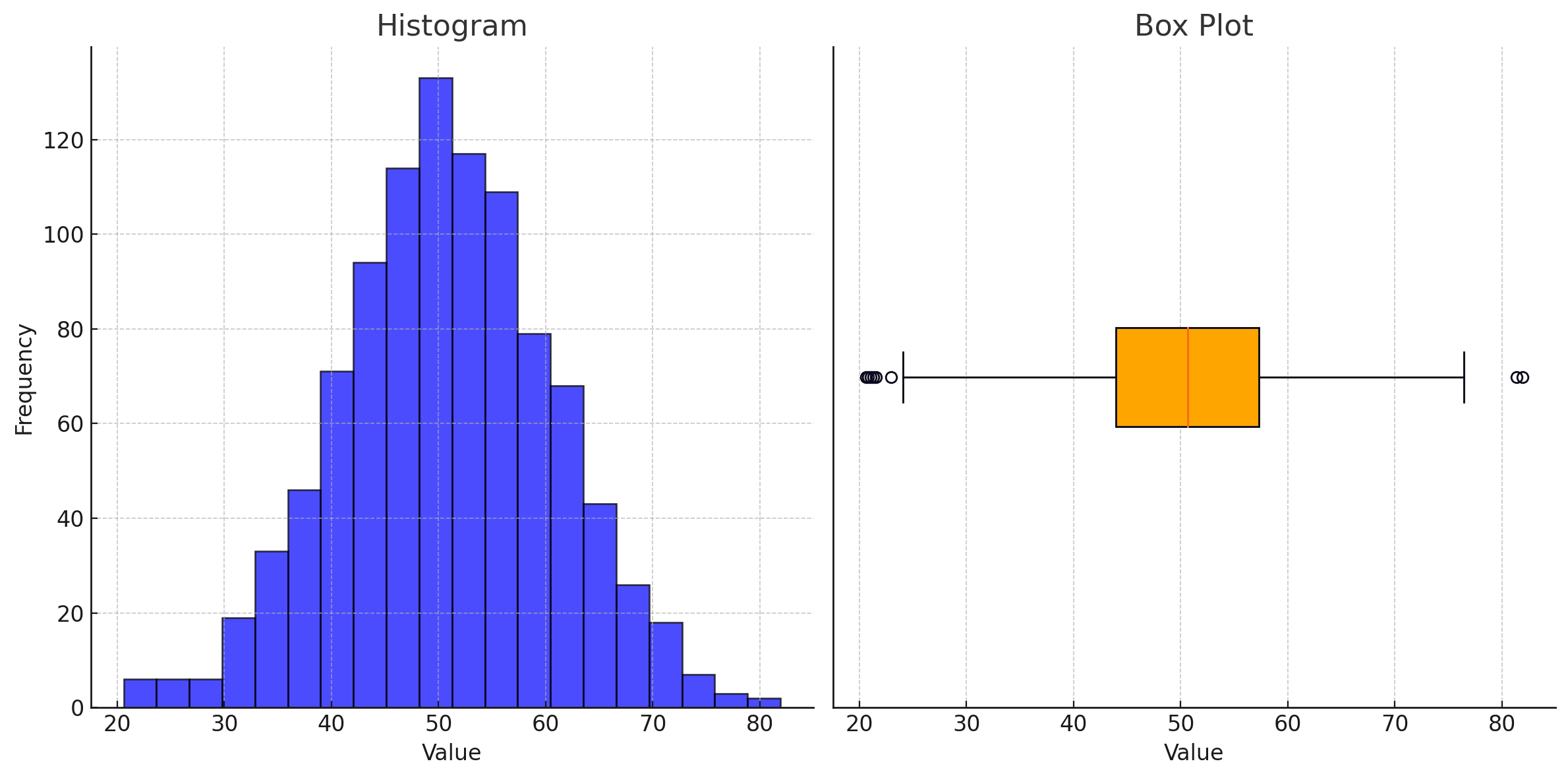
Histograms show distribution shape; Box Plots highlight summary statistics and outliers. Use both for complete understanding. Histogram reveals bimodality box plots miss; box plots reveal outliers histograms obscure. Complementary views of the same data.
Normality Tests
Histograms suggest normality visually; statistical tests confirm it. “Histogram looks normal – but IS it?” Anderson-Darling, Shapiro-Wilk tests provide statistical proof. Visual assessment → Statistical confirmation.
Stratification
When overall histogram looks strange, stratify by subgroups. “Total histogram is bimodal – let’s separate by shift/machine/operator.” Stratified histograms reveal hidden subpopulations. Aggregate confusion → Stratified clarity.
Run Chart / Trend Analysis
Histograms ignore time sequence; Run Charts preserve it. “Distribution looks good overall, but is there a trend?” Use both to catch both distributional and temporal patterns. Shape analysis → Trend analysis.
Benefits of Using a Histogram
Visual Clarity
Histograms are good tools for making data analysis clearer since they show data distribution in clear intervals. By organizing data into bins, histograms help reduce the confusion from individual points and present a tidy view of how values are arranged, allowing easy detection of concentrations and spreads in the data. This clarity lets users quickly see the overall shape of the dataset—whether it is skewed or symmetric—without digging through raw numbers. Thus, histograms make complicated data easier to understand at a single glance.
Anomaly Detection / Pattern Recognition

Histograms help find anomalies, gaps, and patterns in data easily. The height of each bar shows how many data points are in each range, making outliers and spikes easy to see. Unusual gaps between bars can point out missing data or show breaks in the data, while repeated peaks might hint at cycles or regular patterns. This ability to recognize patterns is important in quality control and predictive analysis, where catching unusual trends early on can avoid bigger problems down the line.
Informed Decisions
With clear insights into data distribution, histograms allow decision-makers to make choices based on a solid understanding of the data. When data is clearly organized and patterns are obvious, it cuts down on uncertainty and boosts confidence in interpreting statistical outcomes.
For example, knowing if data points are grouped in certain ranges or spread out evenly can greatly influence strategies, resource allocation, or risk evaluations. Histograms make this process simpler, ensuring that decisions are informed and closely tied to the trends shown in the data.
Process Enhancement
In efforts to improve quality, histograms are strong tools for spotting and fixing inconsistencies in processes. By regularly looking at process data in histogram form, teams can see which stages meet quality standards and which do not.
For instance, a histogram showing frequent values outside the desired range may signal a need for changes, while consistent grouping within acceptable limits indicates stability. This focused view of areas for improvement helps teams enhance operations, reduce variability, and achieve more reliable and high-quality results.
Limitations of Histograms
Bin Selection
A major issue with histograms is picking bin sizes, as wrong widths can affect data analysis. If bins are wide, key details can be missed, leading to overlooked trends in the data.
On the other hand, if bins are too narrow, this can create too much detail, making it hard to see larger patterns or groupings. This dependence on bin size can make histogram results misleading, as they may not show the data’s true nature if the sizes are not chosen well.
Bin Sensitivity
Histograms are very reactive to changes in bin size, which means different bin choices can significantly change how the data appears visually and the conclusions drawn from it. Even small changes in bin width or number can create histograms that look very different, possibly leading to different interpretations of the same data.
This inconsistency can be puzzling, especially for those who do not understand how bin changes affect the representation of data. Thus, histograms need a careful balance between detail and clarity to prevent misleading insights due to random bin selections.
Simplification
While histograms are good for showing data distribution, they can sometimes oversimplify complex relationships in the data. By grouping data into intervals, histograms may obscure interactions or correlations between variables that are important for a thorough analysis. This simplification can result in lost information, as histograms mainly focus on single-variable distributions and may not represent multi-dimensional features of the data.
Therefore, relying only on histograms can restrict analytical understanding, particularly in datasets with variable interactions that a single-variable view cannot adequately show.
Histogram Best Practices
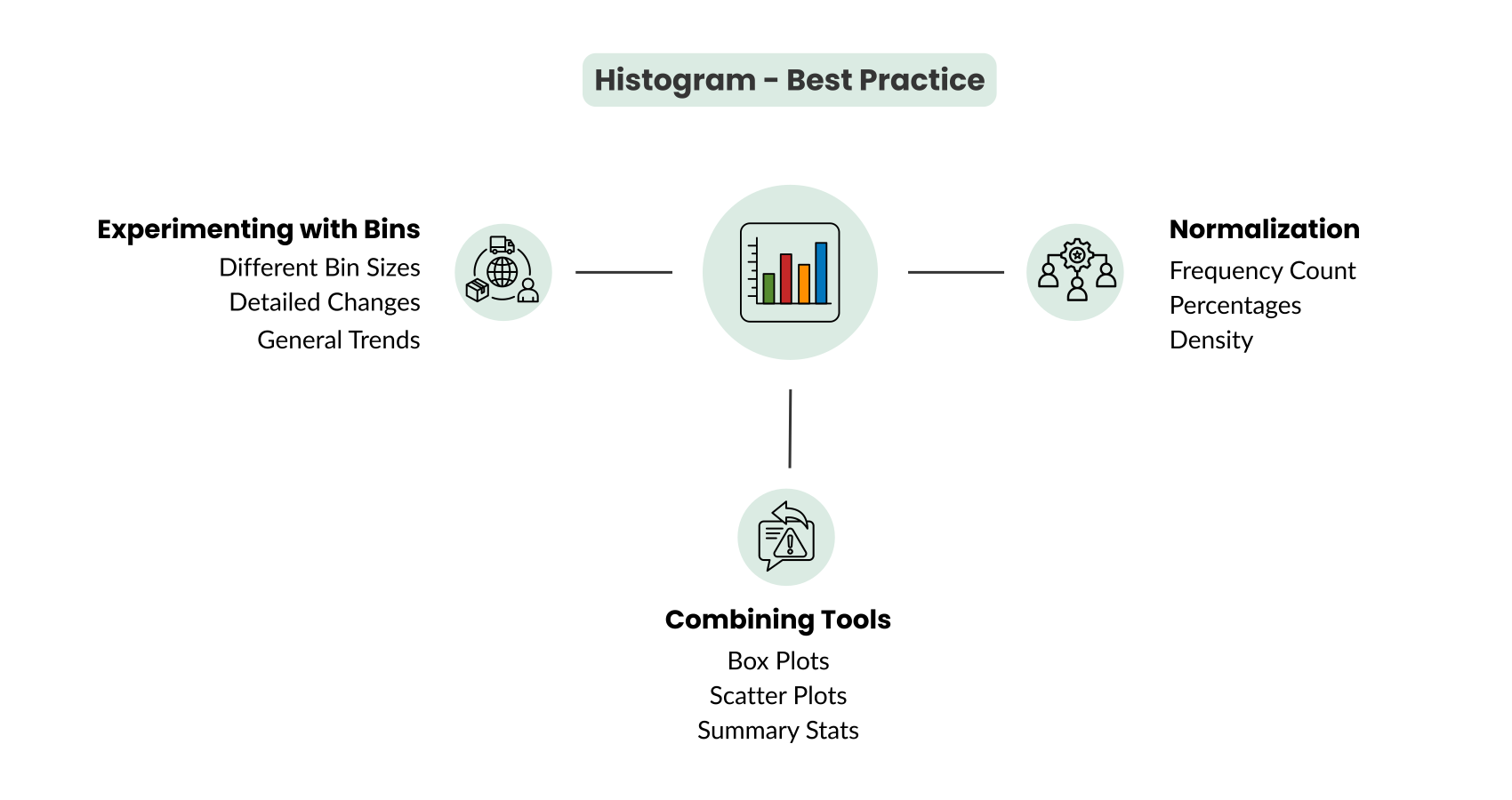
1. Experimenting with bins
A helpful idea when using histograms is to try different bin sizes to find hidden patterns in the data. Changing the width and amount of bins can show small trends, groups, or gaps that might not be clear with just one setting.
For instance, smaller bins can show detailed changes, while larger bins can show general trends. By testing various bin sizes, you can understand the data better, leading to better insights and a lower chance of missing important details about the distribution.
Bin Selection (Wide vs Narrow Bins):
This graph compares a histogram with few, wide bins (blue) to one with many, narrow bins (orange). The wide bins capture general trends, while the narrow bins reveal finer details.
Bin Sensitivity (Small Changes in Bin Width):
This graph demonstrates how small differences in bin width (5 for green and 6 for purple) can alter the visual interpretation of the data. This shows the sensitivity of histograms to bin size changes.
2. Normalization
When looking at datasets with different sizes or scales, normalizing histograms is important for good analysis. Normalization changes the frequency count of each bin, often by using percentages or density instead of raw counts.
This allows for fair comparisons between datasets that might differ in size or range, making sure that one dataset does not dominate the interpretation. Normalized histograms allow for consistent visual comparisons, making it easier to see differences in patterns, trends, or shapes across datasets with different features.
The above graphs illustrate the importance of normalizing histograms:
Non-Normalized Histograms: Here, the raw frequency counts are displayed. Since the datasets differ in size, the larger dataset dominates the visualization, making it difficult to compare trends or patterns fairly.
Normalized Histograms: These histograms show the data as densities (proportions of the total). This normalization enables a fair comparison, allowing you to see patterns, shapes, and trends in both datasets without one overshadowing the other.
Normalizing histograms ensures a balanced and accurate visual analysis of datasets with different sizes or scales.
3. Combining Tools
To get a complete analysis, use histograms along with other tools like box plots, scatter plots, or summary stats. Histograms show the overall data distribution, but other tools can help you see variability, relationships between variables, or how data is spread out. For example, a box plot can show median values and outliers next to the histogram’s distribution, adding context and helping spot patterns that overlap. Using different tools gives a full view by taking advantage of each method’s strengths, leading to a better understanding of complex datasets.
Histogram vs. Box Plot
1. Common Ground
Histograms and box plots both visualize how data is spread out but do so with different focuses. They help show how data values are distributed, aiding in spotting patterns and trends in the data. Both can give a sense of where data points group together, offering insights into the shape, spread, and average of a dataset.
Both visualizations show the spread and central tendencies of the data but from different perspectives:
- The histogram focuses on detailed distribution patterns.
- The box plot highlights summary statistics and extreme values.
Analysts use these tools often to find outliers, check for symmetry or skewness, and quickly grasp the characteristics of the data.
2. Differences
The main difference between histograms and box plots is in how they present information:
- Focus on Frequency vs. Summary Stats:
A histogram displays frequency by splitting data into bins and counting the observations in each bin. This makes it ideal for showing the shape and spread of data across a range. In contrast, a box plot summarizes data using key statistics—the median, quartiles, and potential outliers—providing a quick overview of central tendency and spread, as well as extreme values.
- Visualization of Outliers:
Box plots are effective for pointing out outliers, marking any points outside the expected range with “whiskers” from the box. Histograms do not easily show outliers since they show counts in bins rather than specific data points, making box plots better for spotting unusual values that can affect analysis.
- Data Detail Level:
Histograms group data in bins, giving a visual of frequency but lacking specific individual data details. Box plots, however, show specific values like the median and quartiles and the range of the central 50% of values. This detailed view helps understand data spread and variability.
3. Summary
Both histograms and box plots work to clarify data distribution, but histograms focus on frequency and overall shape, while box plots highlight statistical summaries and outliers. Used together, these tools can be powerful: histograms provide a wide view of distribution patterns, while box plots add details on key statistics and unusual values, leading to a thorough approach to data analysis.
Histogram vs. Correlation Chart
1. Common Ground
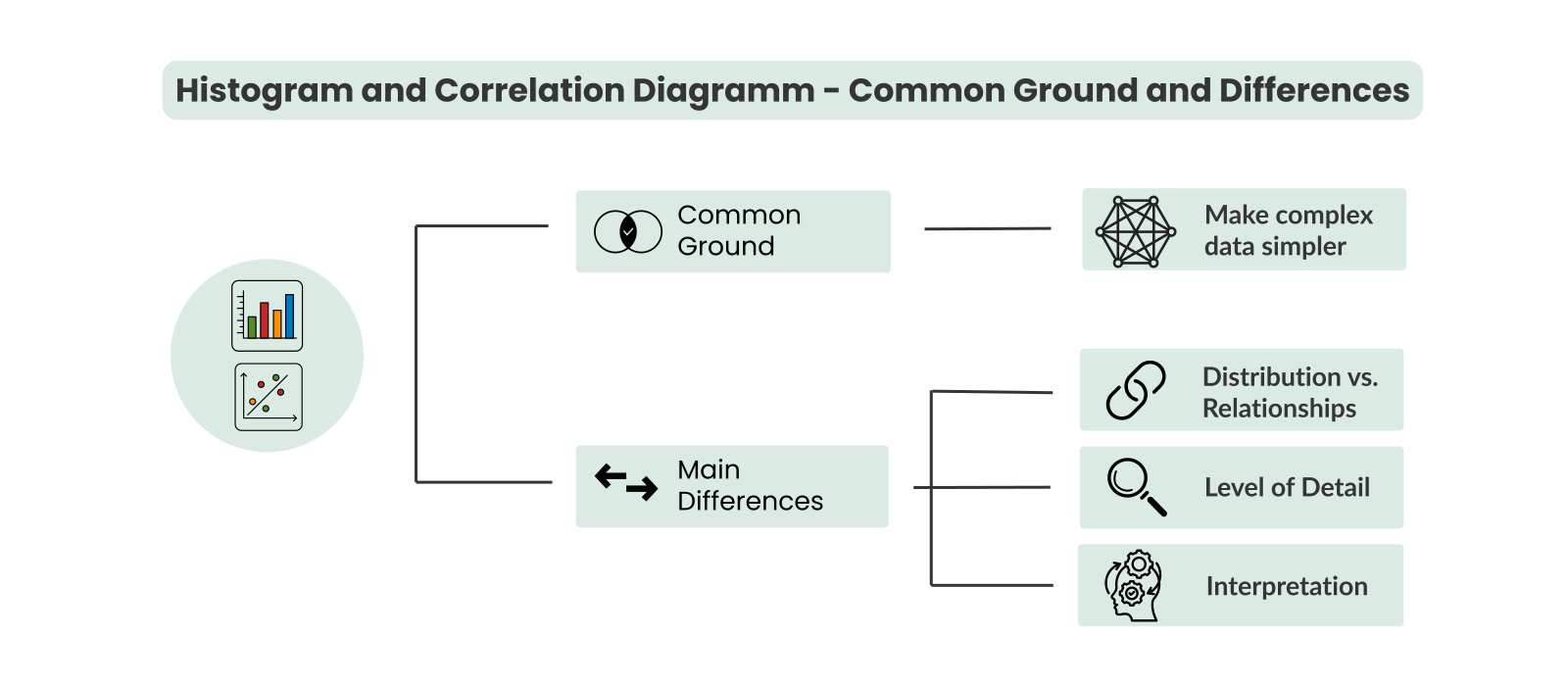
Histograms and scatter plots are important tools for visualizing data to find patterns and trends. Each plot type helps make complex data simpler, showing how data is distributed or if any relationships exist.
They are both commonly used in exploratory data analysis, helping understand how data points behave in a dataset. Histograms clearly show how frequently values occur across ranges, while scatter plots illustrate how two variables affect each other, making both useful for different analysis needs.
2. Differences
The main difference between histograms and scatter plots is their focus and layout:
Distribution vs. Relationships:
A histogram is good for showing the distribution of one variable. It sorts data into bins and plots how often values appear in each bin, helping users see the overall shape and spread of the data (like normal or skewed). A scatter plot, however, is meant to display the relationship between two variables. Each point on a scatter plot is an observation, with one variable on the x-axis and another on the y-axis. This setup helps identify potential correlations or trends between the variables.
Level of Detail:
Histograms group data in bins, offering a general view of value distribution without showing individual points. This overview helps identify where data is dense or sparse but lacks specifics. On the other hand, scatter plots show individual data points, giving a detailed look at each observation. This clarity makes it easy to notice clusters, outliers, or trends directly in the data, which are important for understanding relationships between variables.
Interpretation:
Histograms aid in interpreting a dataset’s shape and spread, useful for recognizing distribution patterns, while scatter plots let users explore associations between variables. For example, a histogram might display that test scores cluster in some ranges, while a scatter plot might show a link between study time and test results. Therefore, histograms are better for one variable at a time, while scatter plots highlight how two variables may influence each other.
3. Summary
Histograms and scatter plots have different functions: histograms show the distribution and shape of a single variable, making them suitable for frequency analysis; scatter plots reveal relationships between two variables. Using both tools can lead to a deeper understanding, as histograms provide insights on single variable trends, and scatter plots illustrate connections between variables, contributing to a complete data analysis strategy.
Histogram Example: Pizza Quality Control
Zero-Defect Pizzeria wants to make its pizza quality better by rating any pizza scoring 0-4 is bad, while scores 5-10 are good. The aim is to keep most pizzas in the good quality category to satisfy customers:
1. Define Quality Scoring Criteria
Each pizza is rated on things like crust, taste, toppings, and how it looks, getting a score from 0 to 10:
0-4: Bad (e.g., problems like undercooked, uneven toppings, not goodlooking)
5-10: Good (pizzas that are fine or better)
2. Collect Quality Data
Quality checkers test 100 pizzas during the day, giving each a score from 0 to 10.
Example data (out of 100 scores):
[6, 7, 5, 9, 8, 3, 4, 10, 2, 6, 7, 1, 5, 8, 9, 3, 6, 5, 7, 6, …]
3. Set up the histogramm bins
Choose bins to show the data spread, like making bins for every two points (0-2, 3-4, 5-6, 7-8, 9-10) to see the good and bad scores clearly.
Use these bins to show bad scores (0-4) and good quality scores (5-10) separately.
4. Plot the histogram
Draw the histogram to show the score spread, with data sorted into the bad (0-4) and good quality (5-10) groups.
5. Identify Defects
Look at the histogram and see the bars in the 0-4 section:
Scores 0-4: Mark pizzas that do not meet standards, maybe because they are undercooked, have bad topping placement, or other issues.
If the histogram shows 15 pizzas scoring 0-4, that means there is a 15% defect rate.
6. Analyze and Act
Since the histogram shows 15% of pizzas are bad, work on improvements:
Target Quality Checks:
Find out why scores are low (like changing cooking times, improving ingredient quality, or training workers).
Improve Consistency:
Set procedures to keep all pizzas in the good quality range of 5-10.
Result
This histogram method helps Zero-Defect-Pizza to find problem areas and track pizza quality scores over time. By checking scores often and making changes, the pizzeria can lower the defect rate, making sure most pizzas meet the 5-10 quality standard.
FAQ Histogram
What is a Histogram?
A Histogram is a graphical representation that displays the frequency distribution of a dataset by organizing data into intervals or “bins.” Each bar in a histogram represents a bin, and the height of each bar corresponds to the number of data points falling within that range.
Histograms help in visualizing the distribution, central tendency, and variability of data, making them an essential tool for quality management, data analysis, and decision-making. They are commonly used to identify patterns, trends, and outliers within a dataset.
When is a Histogram used?
Histograms are used in several scenarios, including:
- Quality Control: To monitor process variations and identify defects or abnormalities.
- Data Analysis: To visualize large datasets, revealing central tendencies, dispersion, and outliers.
- Decision-Making: To guide strategic decisions by illustrating data patterns and trends.
- Process Improvement: To evaluate process stability and identify areas for enhancement.
Histograms are particularly effective when working with large datasets and are widely used in manufacturing, healthcare, finance, and research for data-driven insights.
Why are Histograms important?
Histograms provide a clear and intuitive visualization of data distribution, enabling organizations to:
- Identify trends and patterns within data, helping in predictive analysis.
- Detect outliers and anomalies that may indicate defects or unusual behaviors.
- Understand variability and central tendency for better decision-making.
- Support process improvement by revealing areas needing attention or optimization.
By using histograms, quality professionals can transform raw data into meaningful insights, driving continuous improvement and strategic decision-making.
How to create a Histogram?
Collect Data:
- Gather quantitative data relevant to the process or product under review.
- Example: Record 100 repair times throughout the day, measured in minutes.
Choose Class Intervals (Bins):
- Divide the data into class intervals or bins to group similar values together.
- Common methods for determining the number of bins include:
- Square Root Rule: √n, where n is the total number of data points.
- Rice’s Rule: 2×n1/32 \times n^{1/3}2×n1/3
- 2-to-the-k Rule: Find k so that 2k≈n2^k \approx n2k≈n
Plot the Diagram:
- Create bars for each bin, where the height of each bar shows the frequency of data points in that interval.
- Keep bar widths consistent and label axes clearly for easy interpretation.
Interpret the Results:
- Analyze the shape of the histogram to identify distribution patterns:
- Symmetric Shape: Often indicates a normal distribution.
- Skewed Shape: Suggests outliers or other patterns.
- Bimodal or Multimodal: Shows multiple peaks, indicating subgroups or varying behaviors.
- Identify trends, peaks, and anomalies to gain insights into the dataset.
- Analyze the shape of the histogram to identify distribution patterns:
What are the benefits of using a Histogram?
Visual Clarity:
- Histograms offer a clear visual representation of data distribution, making it easier to spot trends and patterns.
- They simplify complex data into understandable visual insights.
Anomaly Detection and Pattern Recognition:
- Histograms help in identifying outliers and anomalies within the data.
- They reveal patterns such as skewness, central tendency, and dispersion.
Informed Decision-Making:
- By visualizing data distribution, histograms support evidence-based decision-making.
- They provide a quantitative basis for strategic planning and process improvements.
Process Enhancement:
- Histograms help in identifying process variability and inefficiencies.
- They enable continuous improvement by revealing areas needing optimization or intervention.
What are the limitations of Histograms?
Bin Selection:
- Choosing the right bin size is critical as it significantly affects the interpretation of the histogram.
- Too wide bins can hide important details, while too narrow bins may create noise and over-complication.
Bin Sensitivity:
- Small changes in bin width can alter the histogram’s appearance, potentially leading to misinterpretation.
- This sensitivity requires careful experimentation with bin sizes to achieve accurate visualizations.
Simplification:
- Histograms simplify data by grouping it into bins, potentially losing individual data point details.
- They provide a general overview but may not reveal specific data values or correlations.
What are the best practices for using Histograms?
Experiment with Bin Sizes:
- Test different bin sizes to find the most informative representation of the data.
- Compare histograms with varying bin widths to discover hidden patterns or clusters.
Normalization:
- Use normalized histograms (e.g., percentages or density) when comparing datasets of different sizes.
- This ensures consistent visual analysis without bias from dataset size differences.
Combine with Other Tools:
- Enhance analysis by combining histograms with other tools like:
- Box Plots: To visualize outliers, median values, and data spread.
- Scatter Plots: To explore relationships between variables.
- Summary Statistics: To provide context with mean, median, and standard deviation values.
- Enhance analysis by combining histograms with other tools like:
Keep It Simple:
- Avoid unnecessary complexity and keep the histogram clear and easy to read.
- Use standard labels and consistent bar widths to maintain visual integrity.
How do Histograms compare with other data visualization tools?
Histograms vs. Box Plots:
- Histograms: Show frequency distribution and overall shape of data.
- Box Plots: Summarize data with median, quartiles, and outliers for quick statistical insights.
Histograms vs. Scatter Plots:
- Histograms: Display the distribution of one variable by grouping data into bins.
- Scatter Plots: Show relationships between two variables, helping identify correlations or trends.
Histograms and Correlation Analysis:
- While histograms visualize data distribution, scatter plots or correlation charts are better suited for exploring variable relationships.
- Use both tools together for a complete view of data distribution and interdependencies.
How can Histograms be combined with other Quality Management tools?
Check Sheets:
- Use Check Sheets to collect data on specific steps or decisions and then visualize the frequency distribution with a histogram.
- Example: Recording defect counts on a Check Sheet and then plotting a histogram to identify the most common defects.
Pareto Charts:
- Combine Histograms and Pareto Charts to prioritize issues identified in the data.
- Example: Plotting a histogram to show defect frequencies and then using a Pareto Chart to highlight the most significant defects (the 80/20 rule).
5-Why Analysis:
- Use Histograms to identify anomalies or unusual patterns, then apply the 5-Why Analysis to investigate root causes.
- Example: If a histogram shows a spike in production delays, a 5-Why Analysis can help trace the root cause.
Fishbone Diagrams:
- Combine Histograms and Fishbone Diagrams to investigate causes of problems identified in the histogram.
- Example: A histogram showing high defect rates can be followed by a Fishbone Diagram to explore potential causes (e.g., materials, methods, machinery).
Why is a Histogram essential in Quality Management?
Histograms are crucial in Quality Management because they:
- Visualize process variations and distribution patterns, helping to monitor quality control.
- Identify trends, outliers, and bottlenecks that could impact product quality or operational efficiency.
- Guide data-driven decisions by clearly showing the central tendency and dispersion of key metrics.
- Support continuous improvement by revealing areas for optimization and standardization.
Histograms empower quality professionals to transform raw data into actionable insights, driving effective decision-making and process improvements.